

Inter-Warehouse Transfer
What it is for
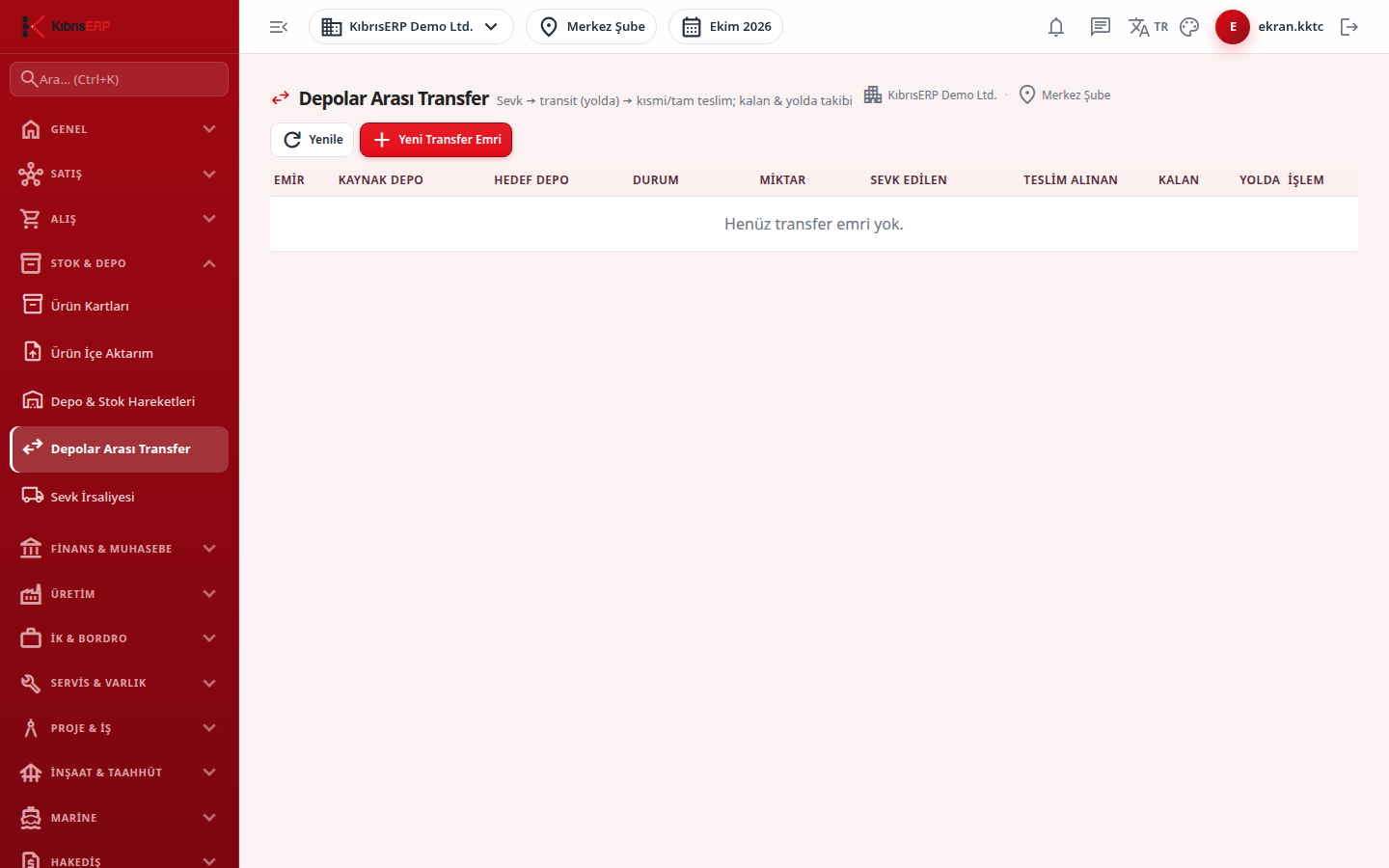
Section titled “What it is for”Stock Transfer Between Warehouses manages moving stock from one warehouse to another in two steps: first a transfer order is opened, with Ship the stock leaves the source warehouse and goes to a transit (in-transit) position, and when the destination warehouse receives the goods, Receive Remainder brings them into the destination warehouse. In each order the Shipped, Received, Remaining and In Transit quantities are followed. For an instant move use the Transfer button on the Warehouses & Stock Movements screen.
Who uses it
Section titled “Who uses it”Warehouse officers. On the Stock / Inventory page of the role screen, View shows the screen; Add is needed to open orders, ship, receive and cancel.
Screens
Section titled “Screens”- New Transfer Order: source warehouse, destination warehouse, product and quantity; for a lot-tracked product also the lot / batch number; save to open the order.
- Ship (row button): the status becomes Shipped and the quantity moves to the In Transit column.
- Receive Remainder: the whole in-transit quantity enters the destination warehouse and the status becomes Received; on a partial receipt the order stays partly received.
- Cancel: the shipped but unreceived quantity returns to the source warehouse; orders already Received or Cancelled cannot be cancelled.
Related modules
Section titled “Related modules”Step-by-step screen guides are currently available in Turkish; the links above open them.