

Online Order Channels
What it is for
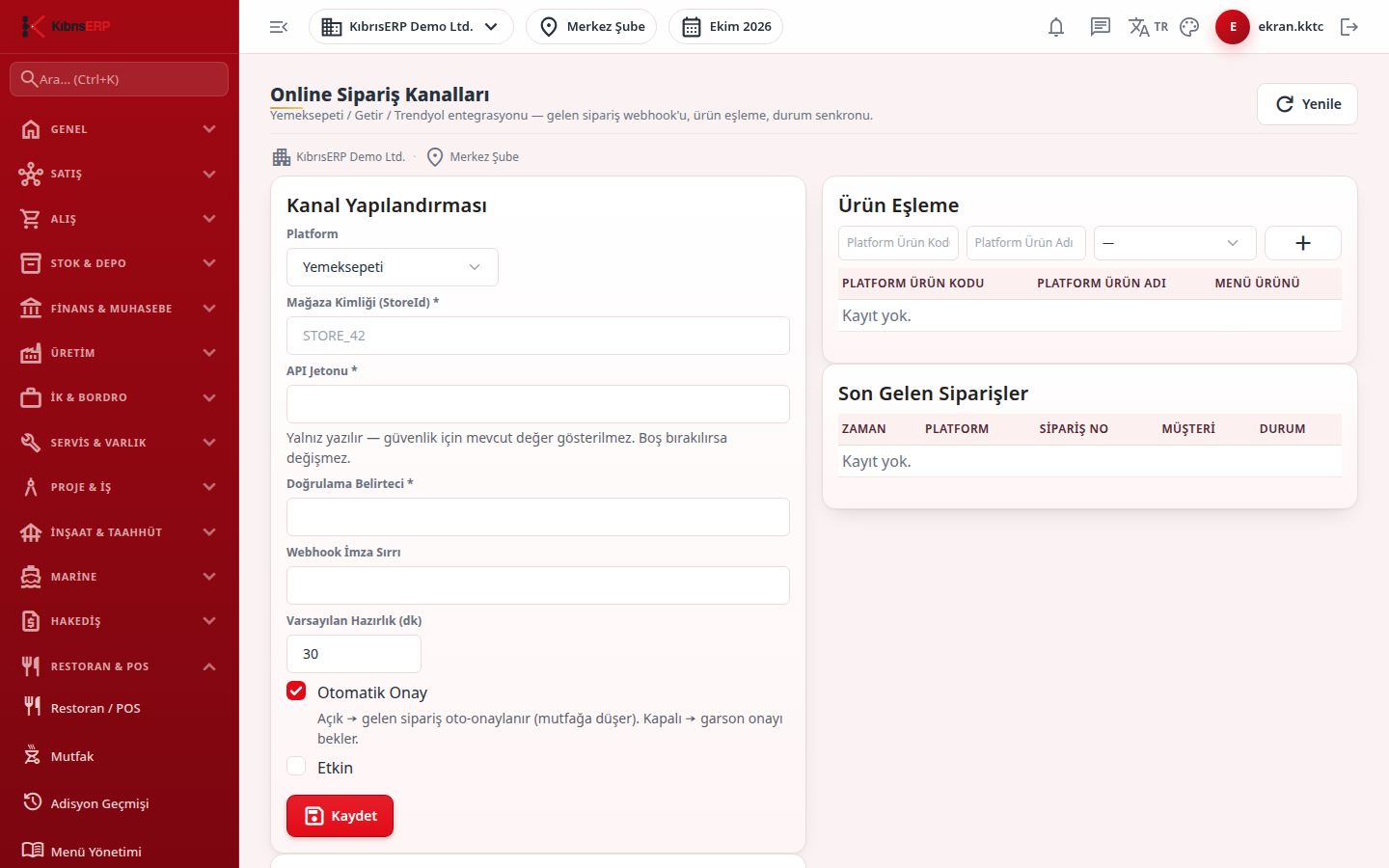
Section titled “What it is for”This screen sets up the connection needed for orders from marketplace platforms (Yemeksepeti, Getir, Trendyol) to land on the restaurant check. You enter the store ID and secret keys per platform, map the platform’s product codes to your menu items, and follow the latest incoming orders.
An incoming order opens as a takeaway order and a check. If Auto Accept is on, the order goes straight to the kitchen; if off, it waits for the waiter’s approval. If the same platform order number arrives a second time it is not opened again.
Who uses it
Section titled “Who uses it”The system administrator or the business manager. To open the screen you must be an administrator or have View on the Settings page of the role screen.
Screens
Section titled “Screens”- Channel Configuration card: choose the Platform, then enter the Store ID (StoreId) and Verification Token. The API Token and Webhook Signature Secret are write-only; if a value is saved the field shows ”… saved”. Set Default Preparation (min), tick Auto Accept and Active as needed and press Save.
- Webhook Setup card: shows the Webhook Address (callback URL) and Verification Token to enter in the platform’s management panel.
- Product Mapping card: platform product code, platform product name and the matching Menu Item; only one mapping is kept per platform and product code.
- Recent Incoming Orders card: the last 50 orders of the selected branch with time, platform, order number, customer and status.
Related modules
Section titled “Related modules”Step-by-step screen guides are currently available in Turkish; the links above open them.