

Deck Plan Settings
What it is for
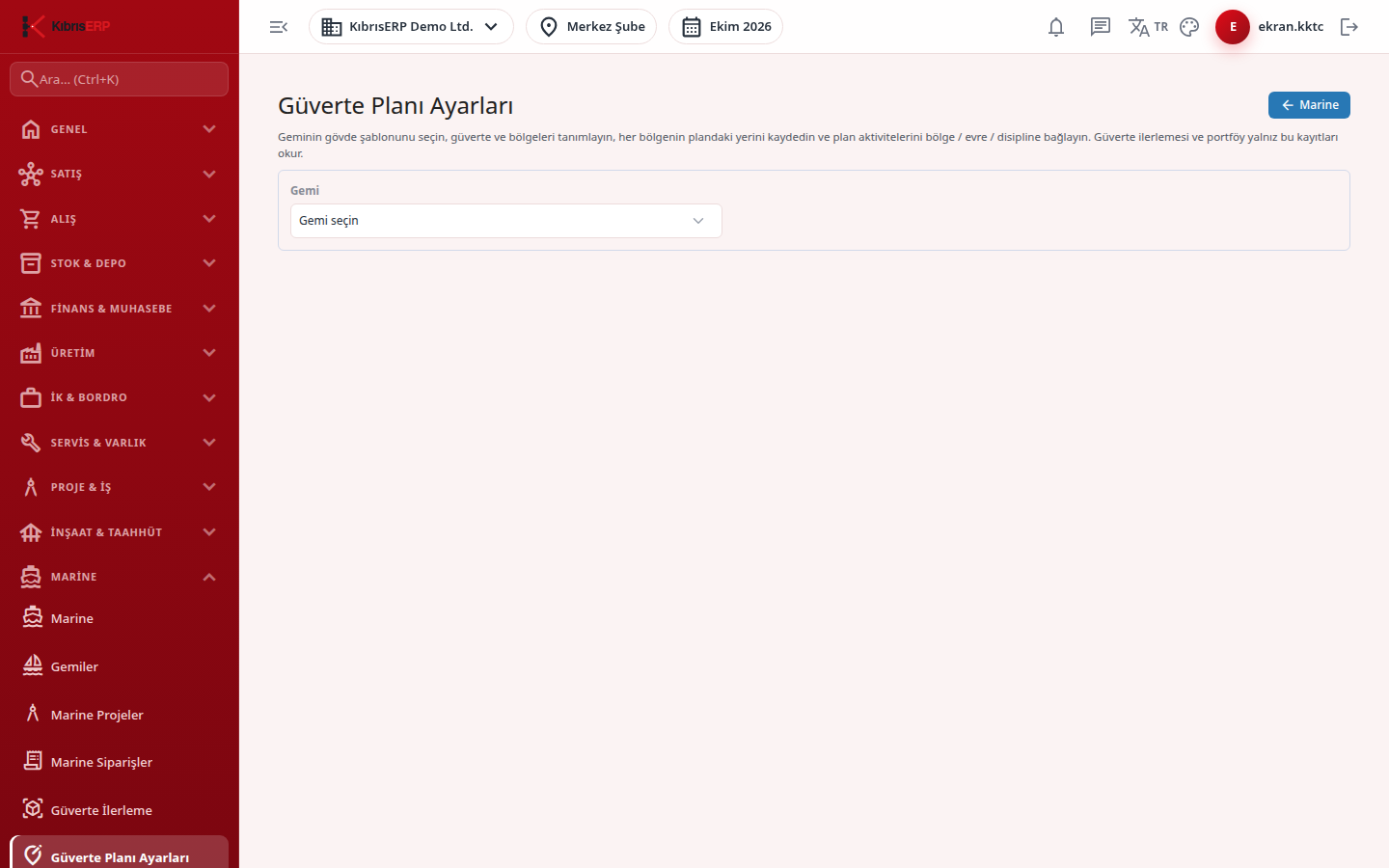
Section titled “What it is for”Deck Plan Settings (Güverte Planı Ayarları) prepares the records that the Deck Progress and Portfolio Dashboard screens read: the vessel’s hull template, the list of decks and zones, the place of each zone in the plan, and which zone, phase and discipline each plan activity belongs to. Progress percentages are calculated only from this classification.
Who uses it
Section titled “Who uses it”The planning engineer and the project office. On the Marine page of the role screen, View opens the screen read-only (“View mode - Marine edit permission is needed to change”); Edit is needed to save.
Screens
Section titled “Screens”- Vessel selector (Gemi).
- Hull template: choose the template that fits the vessel type (yacht / yacht support vessel, tug, cargo / general cargo ship, or “No template (neutral frame)”) and save.
- Decks and zones: view the current structure and add a deck, or a zone under a selected deck.
- Zone position: save a zone’s place as a rectangle (left edge, top edge, width, height, all in percent) or as a polygon of 3 to 32 points. X runs from stern (0) to bow (100) and Y from port (0) to starboard (100).
- Plan activity classification: for each activity choose the zone, phase (design, slipway / hull construction, outfitting, testing and commissioning) and discipline.
Typical workflow
Section titled “Typical workflow”- Open Deck Plan Settings from the Marine menu and select the vessel.
- Choose and save the hull template.
- Add decks and zones and give each zone a position.
- Classify the plan activities.
- After “Saved.” appears, follow the result with the Deck Progress button.
Related modules
Section titled “Related modules”Step-by-step screen guides are currently available in Turkish; the links above open them.